Pick LM Studio if you want everything on screen: search a model, load it and chat, no terminal. Pick Ollama if you want a server other apps talk to, open-source code and one command per model. Both run the same models on the same engine, llama.cpp, so on one machine the same models fit.
That last sentence is the twist in this comparison. Ollama 0.40.10, the stable release since 23 October 2026, ships llama.cpp build b11803; LM Studio 0.4.26 ships its llama.cpp runtime 2.50.0, built on b11337. On a Mac with Apple Silicon both can also run a model through MLX. Same engine, two different coats. We have not raced one against the other with a stopwatch, and with the same GGUF file on the same llama.cpp, speed depends on the engine build and on the settings each program picks (context size, how many layers go to the graphics card), so we are not going to crown a winner on speed. Where they really differ is in what you can read, which doors are open out of the box and what each one sends out without asking. Ollama’s code we have read wherever it touches the network; LM Studio’s is closed, so for that one we can only report what its maker says.
 LM StudioRuntime sheet
 OllamaRuntime sheet
| LM Studio | Ollama | |
|---|---|---|
| What it is | A desktop app: search, download, chat and server in one window | A local server with a command line; desktop app on macOS and Windows only |
| Version on 24 October 2026 | 0.4.26 | 0.40.10 |
| Code | Closed (licence terms), free at home and at work; its lms command line is MIT |
Open source, MIT |
| Engines | llama.cpp (GGUF) and MLX on Apple Silicon | llama.cpp (GGUF) and MLX, the default on Apple Silicon |
| Runs on | Windows x64 (AVX2) and ARM64, Apple Silicon Macs (macOS 14+), Linux x64 and ARM64. No Intel Macs | Windows 10 22H2+ x64 and ARM64, macOS 14+ (Intel Macs on the processor only), Linux amd64 and arm64 |
| Where models come from | Search inside the app (Hugging Face), GGUF and MLX | Ollama’s own library (ollama pull), or a GGUF or safetensors you import |
| Listens on | 127.0.0.1:1234 |
127.0.0.1:11434 |
| Password on the local API | None by default; API tokens with permissions if you switch on Require Authentication | None, and the local server has no key to check |
| CORS out of the box | Off; --cors or the Enable CORS switch turns it on |
Open to pages on localhost, 127.0.0.1 and 0.0.0.0 on any port |
| APIs | OpenAI-compatible (/v1), Anthropic-compatible (/v1/messages) and its own REST API |
Its own API (/api), OpenAI-compatible (/v1) and Anthropic-compatible (/v1/messages) |
| Without a window | The llmster daemon (lms daemon up) |
ollama serve |
| Default context | Its own, which it does not publish; you can set it per model when you load it | Set by graphics memory: 4,096, 32,768 or 262,144 tokens |
| Contacts on its own | 2 things, by its maker’s account (closed code) | 4 kinds of call with the desktop app, 2 with ollama serve alone (read in its code) |
| Models folder | ~/.lmstudio/models |
~/.ollama/models |
Same engine, same models: what fits does not depend on the program
A model file weighs what it weighs. A GGUF quantized at Q4_K_M takes the same bytes of memory in LM Studio and in Ollama, because in both a GGUF is normally loaded by llama.cpp. What moves the bill is the context: the longer the conversation the model has to keep in mind, the bigger the cache it reserves next to the weights. And that is where the two programs make different choices for you, as you will see in the context section below.
On a Mac with Apple Silicon there is a second road. Since version 0.40.0, Ollama runs a model on MLX by default whenever its architecture is supported, and a tag in its library can hold two versions: the Mac downloads the MLX one if it exists and every other machine gets the GGUF. LM Studio lets you pick: its search shows GGUF and MLX side by side, and it has its own MLX engine. Since 0.4.25 LM Studio also lists a third engine, Splash, for Macs with M3 or newer on macOS 26.4 or later; that one is its maker’s word, since it is closed code.
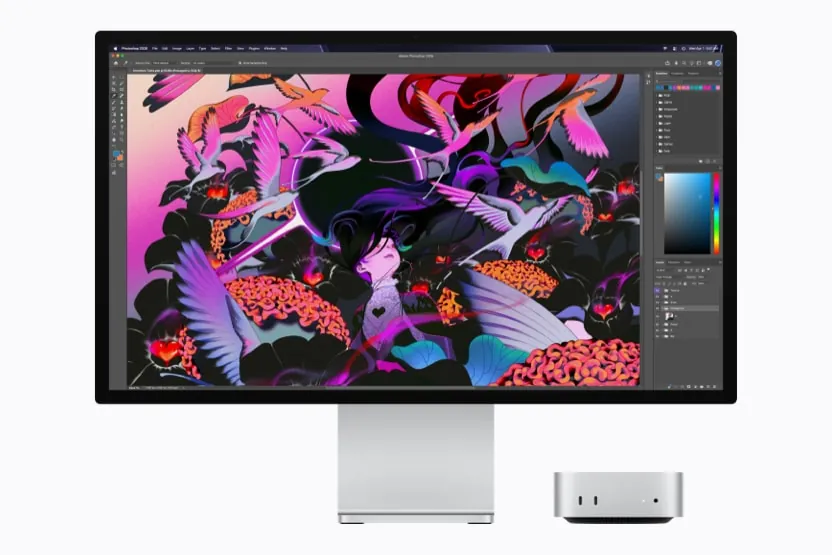
One practical catch if you plan to keep both. They do not share a folder: LM Studio stores models in ~/.lmstudio/models and Ollama in ~/.ollama/models, in its own layered format. Install both and every model you want in both lands on your disk twice. With a 20 GB model, that is the kind of detail you remember the day the disk fills up.
To see which models fit on your machine and at what context, our Model Finder does the maths with the same rule whichever of the two you use.
An app you look at, or a server you talk to
LM Studio is built to be seen. You open it, search for a model in the Discover tab, download it, load it and chat. The local server lives on the Developer page and starts with a switch, or with lms server start from the terminal; lms ships with the app. There is also llmster, the core of the app without the window, for a Linux box or a server: you install it with a script and start it with lms daemon up.
Ollama is built to be talked to. ollama run followed by a model name downloads it and opens a chat in the terminal, and in the background a server stays listening for any app that wants to use it: your editor, a chat front end, your own script. On macOS and Windows a desktop app adds a chat window and a settings screen; on Linux there is no desktop app at all, just the server and the command line. If you are curious about ollama serve, it is that same server started by hand, and on most installs you never need to type it.
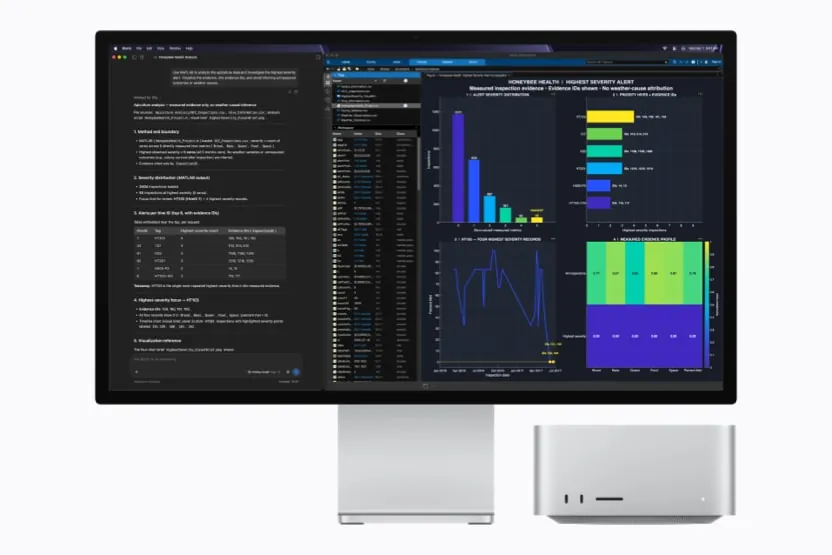
So the first question is not which one is better, it is how you like to work. If a terminal makes you nervous, LM Studio will feel like home within minutes. If what you want is a model on tap for other programs, Ollama gets out of the way. Installing each one, step by step, is covered in our LM Studio setup guide and our Ollama setup guide.
Opens on YouTube (no cookies) only when you press play. More videos on its sheet →
Ollama API key: the local server does not have one (LM Studio does)
Ollama’s own documentation is clear: the local API at http://localhost:11434 does not require authentication. If a tool insists on an API key, for example an OpenAI client, give it any text: Ollama’s examples use api_key='ollama' and say it is “required but ignored”. The API keys you create in an ollama.com account are for Ollama’s cloud (https://ollama.com/api and /v1), not for the server on your computer.
There is a variable that sounds like a lock and is not one. OLLAMA_AUTH only makes the Ollama client sign its requests; in the code, the server checks nothing. So if you need a password in front of a local Ollama, it has to come from something you put in front of it, such as a reverse proxy with its own login.
LM Studio has this built in since version 0.4.0. On the Developer page, under Server Settings, switch on Require Authentication; with Manage Tokens you create tokens, each with its own permissions. From then on every request has to carry Authorization: Bearer followed by the token, and the Anthropic-style /v1/messages endpoint also accepts x-api-key. Out of the box it is off, so a fresh LM Studio asks for nothing either.

Ollama context length, and how LM Studio does it
Ollama picks the default context from the graphics memory it detects when the server starts. In the code of 0.40.7: under 23 GiB, 4,096 tokens; from 23 GiB, 32,768; from 47 GiB, 262,144. The documentation rounds those to 24 and 48 GiB. The server writes the result in its log on a line that contains vram-based default context, and ollama ps shows the context of each loaded model in its CONTEXT column.
4,096 tokens is a few pages of text. A long chat or a big code file goes past it, and from then on the model no longer sees the beginning. Ollama itself recommends at least 64,000 tokens for agents, web search and coding tools. There are 3 ways to raise it: the context slider in the desktop app’s settings, the variable OLLAMA_CONTEXT_LENGTH when the server starts (for example OLLAMA_CONTEXT_LENGTH=32768 ollama serve), or the num_ctx option in each request.
LM Studio lets you decide instead. If you tick Manually choose model load parameters when loading, or use lms load with --context-length, you set the context for each model; otherwise it loads with a default of its own that it does not publish. And --estimate-only prints how much memory the load would take without loading anything. It is one more step, and also one less surprise.
Remote access: OLLAMA_HOST=0.0.0.0 and LM Studio’s Serve on Local Network
Both come listening only on your own computer: Ollama on 127.0.0.1:11434, LM Studio on 127.0.0.1:1234. To reach them from another device you have to open them on purpose.
In Ollama, the setting is the variable OLLAMA_HOST=0.0.0.0:11434: on Linux in the service’s Environment= line, on macOS with launchctl setenv, on Windows as a user environment variable. The desktop app also has a setting that does the same thing, off by default. Keep in mind what comes with it: no password, and the check Ollama makes on the Host header of each request only applies when it listens on your own machine. Anyone who can reach port 11434 can use it, models included.
In LM Studio, the switch is Serve on Local Network, or lms server start with --bind 0.0.0.0. Its documentation warns that any address other than 127.0.0.1 exposes the server beyond your machine and recommends switching authentication on.

CORS is the other door, and here they start from opposite ends. CORS decides which web pages may use the server from inside your browser. Ollama accepts out of the box pages served from localhost, 127.0.0.1 and 0.0.0.0 on any port, plus a few app schemes (app://, file://, tauri://, vscode-webview://, vscode-file://), and answers 403 to any other origin; browser extensions have to be added with OLLAMA_ORIGINS, which adds origins to that list and never removes the built-in ones. LM Studio keeps CORS off unless you switch on Enable CORS or start the server with --cors; with its code closed, we cannot tell whether it refuses those requests or only hides the answer. Either way, the lock is Require Authentication, not CORS.
What each one sends out on its own
This is the part we read in the code, and where Ollama turns out to be the chattier of the two. With its desktop app open on macOS or Windows, Ollama makes 4 kinds of call to ollama.com without you doing anything: it checks for updates every hour (the auto-update setting only stops the download, never the check), fetches a catalogue of recommended models every 4 hours, preloads the cards of its cloud models when the server starts, and asks ollama.com for your account when the app opens, with or without an account. With only ollama serve, as on Linux, the 2 cloud ones remain, and OLLAMA_NO_CLOUD=1 switches them off; with the desktop app, the hourly update check and the account call stay whatever you set. There is no analytics library anywhere in it. We counted this on the code of 0.40.2 and checked every version since, up to 0.40.7: none of them changes it.
LM Studio says it has no telemetry, and by its own account 2 things go out by themselves: the app checks for updates (its privacy policy says it receives the app version and build, the operating system and the IP address), and the inference engines update themselves, on by default since version 0.3.9 and switchable off in the app settings. Searching in Discover reaches Hugging Face, but only when you use it. Is that all? We cannot tell you: the code is closed, and nobody outside the company can read it to check. That is the trade.

The licence follows the same line. Ollama is MIT: you can read it, change it and ship it. LM Studio is free at home and at work under its terms, which forbid reselling it as a service; its lms command line, its SDKs and its MLX engine are MIT. The full detail, with every destination and its source, is on our Ollama page and our LM Studio page.
What about llama.cpp or vLLM?
llama.cpp is the engine under both. Running it directly gives you every flag and the newest build the day it comes out, and it contacts nobody on its own: no update check, nothing. Its server listens on 127.0.0.1:9931 since v0.7.0 (8080 up to v0.6.0). The price is the terminal and choosing the right build for your card. If Ollama or LM Studio ever falls short, that is the next step, and our llama.cpp setup guide walks through it.
 llama.cppRuntime sheet
Opens on YouTube (no cookies) only when you press play. More videos on its sheet →
vLLM plays another sport. It is built to serve many users at once from a Linux machine with NVIDIA cards; on Windows it only runs inside WSL, and on a Mac it is experimental and on the processor only. For one person and one laptop, it is not the alternative to these two. If you are setting up a shared server, our vLLM setup guide is the place to start. And to weigh it against Ollama, our vLLM vs Ollama comparison puts the two side by side.
vLLMRuntime sheet
Which one we would install, by profile
- You have never opened a terminal: LM Studio. Search, download and chat in the same window.
- You want a model for your editor, your scripts or other apps: Ollama. One command, a server always listening and an OpenAI-compatible API.
- You want a password on the local API without extra pieces: LM Studio, with Require Authentication.
- You want to know exactly what goes out of your computer: Ollama, whose code can be read, run as
ollama servewithOLLAMA_NO_CLOUD=1; or llama.cpp, which contacts nobody. - You have a Mac with an Intel chip: Ollama, on the processor only according to Ollama. LM Studio has no version for it.
- You have a Linux server with no screen: either, as Ollama’s server or LM Studio’s
llmster.
If something goes wrong after installing, the exact errors and their fixes are in LM Studio not working and Ollama not working.