To run llama.cpp you download 1 ready-made build for your machine, or install it with Homebrew, and then type 1 command: llama serve -hf followed by a model name. It downloads the model, opens an OpenAI-compatible server and a chat page in your browser, all on 127.0.0.1:9931 (8080 in v0.6.0 and earlier), and it sends nothing anywhere on its own. 2 things to set from day 1: a context size with -c 8192, and a narrower CORS with --cors-origins localhost.
We will admit it: this is the one we get most excited about. llama.cpp is the engine at the bottom of the stack, the C/C++ code that most local AI programs build on, and running it directly feels like taking the lid off. It also changes faster than anything else we cover. This page uses the stable version, v0.7.0, published on 15 October 2026, and the daily build b11321, published on 1 October 2026 at 14:09 UTC. Every default here was read in the code of b11321 and of v0.5.0, and checked again in the code of v0.6.0 on 6 October 2026 and of v0.7.0 on 16 October 2026: the only one that changed is the port, 9931 instead of 8080. We also started the official Linux build on our own server to watch what it does.
 llama.cppRuntime sheet
What llama.cpp is, and the new llama command
llama.cpp runs language models stored as GGUF files, a format this same project created, on almost any hardware: Apple silicon through Metal, NVIDIA through CUDA, AMD through ROCm or Vulkan, Intel through SYCL or OpenVINO, and plain processors on their own. It is open source under the MIT licence, and the engine, the server and the web interface all live in 1 repository. The llama.cpp sheet: what it sends home and whether you can audit it covers the audit; this guide is the hands-on side.
The big change of 2026 is a single executable called llama. Its visible subcommands are:
llama serve: the HTTP server, with the OpenAI-compatible API and the web interface.llama cli: a chat in the terminal.llama download: fetches a model without starting anything.llama version,llama licensesandllama help.llama help allalso listsbench,quantize,perplexityand a few more.
The classic llama-server and llama-cli are still in the Linux package we unpacked, next to llama, so older instructions keep working. In b11321, llama --version prints 0.5.0-dev (build 11321, commit b0aca3c65): a daily build is the stable version plus everything merged since.
If you would rather click than type, How to set up LM Studio and its local server, and what it sends out and How to set up Ollama locally and see what it sends out get you to a first answer with fewer decisions. llama.cpp is for when you want every knob.
Stable or daily: which version you get from each installer
llama.cpp has 2 channels. The stable one has tags like v0.7.0; the daily one publishes a numbered build, bNNNNN, every time the main branch moves. Between 30 September at 10:32 UTC and 1 October at 14:09 UTC there were 30 of them. Each installer follows a different one, and on 1 October 2026 they said this:
| Installer | Command | Version on 1 October 2026 |
|---|---|---|
| Homebrew (Mac and Linux) | brew install llama.cpp |
0.5.0, the stable channel |
| llama.app script (Mac and Linux) | curl -fsSL https://llama.app/install.sh | sh |
b11200, a daily build |
| winget (Windows) | winget install llama.cpp |
b11193, a daily build |
| GitHub releases (all systems) | download and unpack | b11321, the daily build this guide follows; v0.5.0 points to build b11146 |
Homebrew formula API, winget package manifests, llama.app’s install script and the GitHub releases API, read on 1 October 2026 between 14:52 and 14:59 UTC. On 6 October 2026 Homebrew already served 0.6.0, the stable version published the day before, and since 16 October 2026 it serves 0.7.0.
Homebrew is the calm route: it gives you the stable version, with packages for Apple silicon and for Linux on x86_64 and arm64. The llama.app script is the one the project’s own README now lists first. It downloads small probe programs that detect CUDA, then ROCm, then Vulkan, then fall back to the processor, installs the matching build into ~/.llama-app and copies it to ~/.local/bin/llama. On a Mac it looks for M1 to M5 chips (and the A18); on an Intel Mac the script stops with No prebuilt llama binary is available for your system. It is also the only install where llama update works, and it works by running the same script again. winget distributes daily builds, not the stable channel.
Which build to download for your machine
Build b11321 on GitHub carries 35 files. Most people need exactly 1 of them:
| Your machine | The file to take (b11321) | Size |
|---|---|---|
| Mac with Apple silicon | llama-b11321-bin-macos-arm64.tar.gz, with Metal built in |
11.8 MB |
| Linux with an NVIDIA card | llama-b11321-bin-ubuntu-cuda-13.4-x64.tar.gz (or cuda-12.8-x64), plus its cudart-… libraries file |
152.2 MB + 440.2 MB |
| Windows with an NVIDIA card | llama-b11321-bin-win-cuda-13.4-x64.zip (or cuda-12.4-x64), plus cudart-llama-bin-win-cuda-13.4-x64.zip |
152.8 MB + 423.5 MB |
| AMD, Intel or other GPUs | the vulkan build: ubuntu-vulkan-x64 or win-vulkan-x64. ROCm 10.0 builds exist for Linux and Windows |
31.5 MB / 33.2 MB |
| No usable GPU | ubuntu-x64 or win-cpu-x64 |
17.5 MB / 19.3 MB |
File names and sizes from the assets of release b11321 on GitHub, read on 1 October 2026.
The Mac Intel build exists, but the project compiles it with Metal switched off, so on an Intel Mac llama.cpp runs on the processor only. If you are choosing among our machines, the 3 we use in the examples below are these:
PC with an RTX 4060 8 GBHardware sheet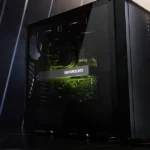 PC with an RTX 3060 12 GBHardware sheet
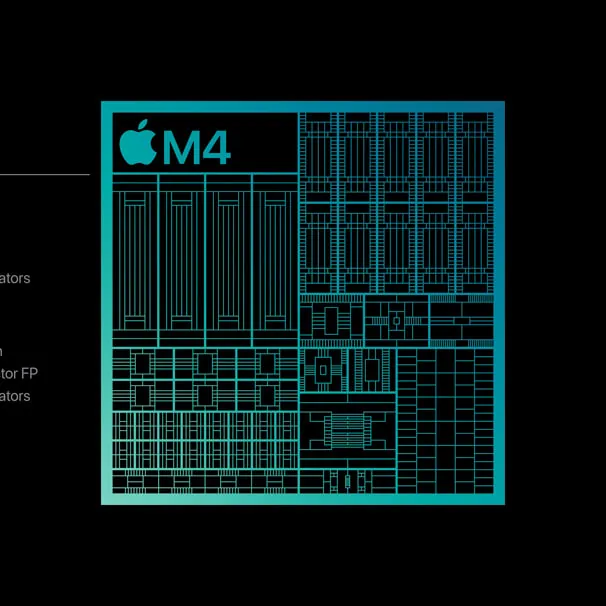
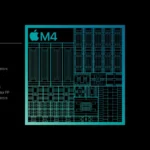 Mac with M4 and 16 GB unified memoryHardware sheet
Unpack the file, open a terminal in that folder and run ./llama --version. On Linux, the libraries sit next to the program; we started the CPU build from its own folder with LD_LIBRARY_PATH pointing there. If you would like to watch someone go through an install before you start, this walk-through is a good companion. Commands move with every build: where the video and this page differ, this page follows build b11321.
Opens on YouTube (no cookies) only when you press play. More videos on its sheet →
Your first model: llama serve -hf and llama cli
The command from the project’s README:
llama serve -hf ggml-org/Qwen3.5-0.8B-GGUF-hf takes a Hugging Face repository, optionally with a compression after a colon, such as :Q4_K_M. Without one, llama.cpp picks Q4_K_M, the same compression our model sizes use, or the first file in the repository if there is no Q4_K_M. If the model has a vision part, its mmproj file comes too (--no-mmproj skips it). Then open http://127.0.0.1:9931 in your browser and the chat page is there. That is the address of the stable v0.7.0 and of the daily builds since b11521 (9 October 2026). Version 0.6.0 and earlier, and older daily builds such as the b11321 in the table above, listen on 8080, and so does a Homebrew install from before 16 October 2026, which gave you 0.6.0: with those, open http://127.0.0.1:8080 instead, or start with --port 9931 and every address on this page works as written.
For a chat in the terminal instead:
llama cli -hf ggml-org/Qwen3.5-0.8B-GGUFAnd to check the API from another terminal:
curl http://127.0.0.1:9931/health
curl http://127.0.0.1:9931/v1/models
For an OpenAI client, the base URL is http://127.0.0.1:9931/v1.
With no model at all, llama serve still starts. We tried it: it printed starting server in router mode. models will be automatically loaded on-demand, listed the models already in its cache (0, on a fresh account) and loaded them on request, up to 4 at a time by default. It also printed router mode enabled – do not expose to untrusted environments, which is good advice that the section on locking it down turns into commands.
If llama.cpp stops with an error, here or later, our guide to llama.cpp errors goes through 8 of them one by one, each with the exact message you will see and the fix.
Memory: the full context by default, and what --fit does with it
This is the default that surprises people. llama.cpp’s context size, -c, defaults to 0, which means loaded from model: the longest context the model was trained for. For qwen3-4b-2507 that is 262,144 tokens.
What happens when that does not fit is different from vLLM, which refuses to start. llama.cpp has --fit, switched on by default, and it adjusts every setting you did not set yourself, in this order: first it shrinks the context, down to a floor of 4,096 tokens; then it decides how many layers go to the GPU and puts the rest in system RAM, leaving 1,024 MiB free on each device. -ngl, the number of layers on the GPU, defaults to auto, which leaves that decision to --fit, and flash attention, -fa, also defaults to auto.
So the server starts, but not necessarily with the context you expected, and possibly with part of the model on the processor, which is slower. The fix is to say what you want:
llama serve -hf ggml-org/Qwen3.5-0.8B-GGUF -c 8192Our model finder and hardware sheets calculate everything at 8,192 tokens, so -c 8192 makes llama.cpp match the numbers on our site. Here is the difference it makes on our 3 example machines, with each model at Q4_K_M:
| Machine (memory for the model) | Model | Needs at 8,192 tokens | Needs at the model’s own maximum | Longest context that fits (16-bit cache) |
|---|---|---|---|---|
| RTX 4060 8 GB (7.20 GiB) | qwen3-4b-2507 | 4.20 GiB | 43.73 GiB at 262,144 (36.0 GiB of it cache) | 16,384 |
| RTX 4060 8 GB (7.20 GiB) | qwen3-8b | 6.56 GiB, just | 11.66 GiB at 40,960 | 8,192 |
| RTX 3060 12 GB (11.20 GiB) | gemma4-12b | 7.82 GiB | 16.35 GiB at 262,144 | 65,536 |
| Mac with M4, 16 GB (13.00 GiB) | gpt-oss-20b | 11.77 GiB, just | 16.83 GiB at 131,072 | 32,768 |
Our calculation with the engine behind our model finder: model file at Q4_K_M, plus the KV cache from each model’s real attention layout, plus working memory; model data of 30 September (15 October for gemma4-12b) and machine data of 1 October 2026. «Longest context» is the largest of 4,096, 8,192, 16,384… up to the model’s maximum that still fits. It is not llama.cpp’s own --fit algorithm, which can also move layers to RAM.
 qwen3-4b-2507Model sheet
 gemma4-12bModel sheet
None of the 4 models fits at its own maximum on the machine in its row. Ask for the full context on a 4060 with qwen3-4b-2507 and it would need more than 5 times the card (a 4B model asking for a datacentre, bless it).
If you want llama.cpp to tell you instead of deciding, --fit off turns the adjustment off, and -ngl all asks for every layer on the GPU. Asking for -c 0 explicitly also disables the context reduction: you get the full context or the layers go to RAM.
How to lock it down: open CORS, no key, and a new port
Out of the box, llama serve listens on 127.0.0.1 only, on port 9931 (8080 in v0.6.0 and earlier). We checked the socket on our server: nothing on the other network interfaces. That is the good news, and it puts llama.cpp with Ollama, LM Studio and MLX, not with vLLM.
The rest needs your attention:
- No key. Anyone who can reach the port can use it.
- CORS reflects any origin, with credentials. We sent a request with the header
Origin: https://some-site.exampleand the server answeredAccess-Control-Allow-Origin: https://some-site.exampleandAccess-Control-Allow-Credentials: true. In plain words: a web page you open in your browser can send requests to your local server and read the answers, while it runs. The server warns about it at startup: security: no API key is set and CORS allows all origins. - The chat page is on by default, on the same port.
What closes it:
export LLAMA_API_KEY="a-long-random-string"
llama serve -hf ggml-org/Qwen3.5-0.8B-GGUF -c 8192 --cors-origins localhost
--cors-origins localhostonly lets pages served from localhost talk to it. A list of exact origins, separated by commas, also works.LLAMA_API_KEY, or--api-key, makes clients send the key as a Bearer token. The variable keeps the key out of the process list.--api-key-filereads several keys from a file.--no-uiswitches the chat page off if you only want the API.
The port. The change the server used to announce is now in the stable channel too: the default is 9931 in v0.7.0, published on 15 October 2026, and in the daily builds since b11521 (9 October). v0.6.0 and the earlier builds listen on 8080, and when they do they print notice: server default port will be changed to :9931 in a future release; from b11521 on, that notice is gone. Since 16 October 2026 Homebrew installs 0.7.0: if you still have 0.6.0 from before that, brew upgrade takes you from 8080 to 9931. The project’s Docker images keep 8080 inside the container. If your scripts depend on 8080, write --port 8080 into them and no update will move it. --host also accepts a UNIX socket path ending in .sock and, since v0.5.0, several addresses separated by commas.
What llama.cpp sends out on its own, and what leaves when you ask
On its own: nothing. We searched the code of build b11321 that makes up the engine, the server, the terminal client and the web interface for analytics, telemetry and tracking libraries, and found none. The addresses written into that code are links printed in messages and help texts, plus the services below, each of which is only contacted when you give the command. When we started the server with no model and an empty home folder, its log showed no outgoing request and the folder stayed empty. That is what we read and what we saw in the log; we did not capture the network traffic.
What leaves when you ask:
- Model downloads, with
-hf,--model-urlorllama download, go tohuggingface.co. The request identifies the program asllama-cpp/plus the build number and commit, and carries yourHF_TOKENif you have one set. - Models packaged as container images, only with
--docker-repo, go to Docker’s registry. llama update, only on installs made with the llama.app script, downloads and runs that script again.

Where models go. Into the standard Hugging Face cache, ~/.cache/huggingface/hub, in the same folder layout Hugging Face’s own tools use, so a model you already downloaded with another program is not downloaded twice. LLAMA_CACHE, HF_HUB_CACHE or HF_HOME move it. Once your models are there, --offline (or LLAMA_ARG_OFFLINE=1) forces llama.cpp to use the cache and prevents network access.
Where chats go. The chat page keeps your conversations in your browser’s storage, not in a folder on the server, according to our audit of the sheet. Clearing the site’s data in the browser deletes them. The server’s prompt cache lives in RAM, 8,192 MiB at most by default, and is not written to disk unless you ask for it.
The order that leaves you with a working and closed llama.cpp:
- Pick your channel:
brew install llama.cppfor the stable version, or the exact build for your machine from the GitHub releases page. - Check it with
llama --versionand note the build number. - Set
LLAMA_API_KEYbefore the firstllama serve. - Start with
-c 8192 --cors-origins localhost, and add--port 8080if anything depends on the old port (since v0.7.0 the default is 9931). - If the model only just fits, add
-ctk q8_0 -ctv q8_0before you lower the context. - Once your models are downloaded, add
--offline.
The other guides in this series cover How to set up MLX on a Mac with mlx-lm, and what it sends out and How to set up vLLM on your own machine, and what it sends out, and the 5 runtimes are compared side by side in 5 local AI runtimes: telemetry, network calls and audit. If you are weighing it against Ollama, which runs llama.cpp’s own server inside, our llama.cpp vs Ollama comparison puts their defaults side by side.