Pick Ollama if you want one command per model, a desktop app on Mac or Windows and models that load and unload by themselves. Pick llama.cpp if you want every setting in your hands, 4 requests at once out of the box and nothing sent anywhere. Under the hood they run the same engine: Ollama starts llama.cpp’s own server inside.
That last sentence is the twist, and we did not take it on faith. llama.cpp v0.7.0 is the stable release of 15 October 2026; Ollama 0.40.10 was published as stable on 23 October 2026. We read the code of both versions wherever it decides memory, concurrency, the network and your privacy. We have not raced them with a stopwatch, so you will not find a speed winner here: with the same model file on the same engine, speed comes down to the build and the settings, and those settings are exactly where the two differ.
 llama.cppRuntime sheet
 OllamaRuntime sheet
| llama.cpp | Ollama | |
|---|---|---|
| What it is | The engine itself, with a server, a terminal chat and a chat page | A manager on top: model library, background service, desktop app |
| Version on 24 October 2026 | v0.7.0 (build b11669), plus about 16 builds a day on the daily channel | 0.40.10, which ships llama.cpp build b11803 |
| Code and licence | Open source, MIT | Open source, MIT |
| Runs on | Windows, macOS, Linux and Android; CPU, CUDA, ROCm, Vulkan, Metal, SYCL and OpenVINO builds | Windows 10 22H2+, macOS 14+, Linux; NVIDIA, AMD, Vulkan and Apple Silicon (also MLX) |
| Model files | GGUF; safetensors only after converting them | GGUF and safetensors; on Apple Silicon, MLX by default |
| Where models come from | Any GGUF file, or Hugging Face with -hf |
Ollama’s own library with ollama pull, or your own file through a Modelfile |
| Requests at once, by default | 4, sharing one pool of context memory | 1 per model; the rest wait in a queue of up to 512 |
| Context by default | The model’s maximum, trimmed to what fits (never below 4,096 tokens) | 4,096 tokens under 23 GiB of graphics memory, 32,768 from 23 GiB, 262,144 from 47 GiB |
| Idle model | Stays loaded until you stop the server | Unloaded after 5 minutes |
| Install and first answer | A build or brew install llama.cpp, then llama serve -hf and a model |
Installer or one-line script, then ollama run and a model |
| Window | A chat page in your browser, on by default | Desktop app on macOS and Windows; terminal on Linux |
| Listens on | 127.0.0.1:9931 (8080 up to v0.6.0) |
127.0.0.1:11434 |
| Key and CORS | No key by default (--api-key adds one); CORS open to any web page |
No key at all; CORS open only to pages on localhost, 127.0.0.1 and 0.0.0.0 |
| Sends on its own | Nothing | 2 kinds of call with ollama serve, 4 with the desktop app; OLLAMA_NO_CLOUD=1 cuts 2 |
The same engine: what Ollama 0.40.10 runs inside
Open Ollama’s source and the relationship is written in plain text. A file at the top of the project, LLAMA_CPP_VERSION, pins the llama.cpp it builds: b11803, a daily build from 21 October 2026. When you load a GGUF model, Ollama 0.40.10 starts llama.cpp’s own server, llama-server, as a separate process: on 127.0.0.1, on a free port the system picks, with its chat page switched off and its downloads forbidden (--offline). Ollama then talks to it and passes the answers on to you through its own API on port 11434. On top, Ollama adds a compatibility layer of its own and a small patch to llama.cpp’s model loading and vision code.
Here is the fun bit: on 24 October 2026, Ollama’s llama.cpp is newer than llama.cpp’s own stable release. v0.7.0 is build b11669, from 15 October; Ollama ships b11803, 134 commits later. llama.cpp’s daily builds are newer still, so if you need support for a model released yesterday, llama.cpp on its own gets there first.
The other engine inside Ollama is MLX, Apple’s framework, which Ollama uses on Apple Silicon whenever the model you pulled is its MLX version. Flint, a coding model, now runs on both engines: 0.40.8 ran it only on macOS, through MLX; 0.40.9 also runs it on Linux and Windows, because b11803 is the llama.cpp build that added Flint. Its default tag in Ollama’s catalogue now holds two versions, MLX for Apple Silicon Macs and a GGUF file for llama.cpp everywhere else, and Ollama downloads the one that fits your machine.

So the choice is not between two engines. It is between using the engine directly, with every flag, or through a manager that picks the flags for you. The rest of this page is about those picks.
4 requests at once, or 1
Start llama serve and it opens 4 slots: up to 4 requests are worked on at the same time. In the v0.7.0 code the server’s number of slots defaults to auto, and auto means 4, with a single pool of context memory shared by all of them. That shared pool is the detail worth knowing: start it with -c 8192 and you get 8,192 tokens for the 4 together, so one long conversation can use the whole pool, but 4 long conversations at once compete for it. -np sets a different number of slots, and then the pool is split evenly between them unless you also add --kv-unified.
Ollama answers 1 request per model at a time: OLLAMA_NUM_PARALLEL defaults to 1, and every other request waits in a queue of up to 512. For one person chatting, that is exactly what you want. You can raise it, and here the code shows the price: Ollama asks its internal llama-server for a context of the chosen size times the number of parallel requests. Set it to 4 on a 4,096-token context and it reserves memory for 16,384 tokens.
When does this matter? With an editor plugin that fires completions while you chat, a script that sends questions in parallel, or 2 people in the house on the same model. With one person typing one question at a time, the 4 slots sit mostly empty and both behave the same. And how much faster is llama.cpp with 4 requests in flight? We have not measured it: it depends on the card, the model and how many requests arrive together.
Context: the model’s maximum, or 4,096 tokens
This is the default that changes your experience the most, and the two take opposite roads.
llama.cpp starts from the top. Its context size, -c, defaults to 0, which means the longest context the model was trained for. Then a mechanism called --fit, on by default, adjusts whatever you did not set: it shrinks the context down to a floor of 4,096 tokens, then moves layers from the graphics card to system memory, aiming to leave 1,024 MiB free on each device. You get the longest context your machine can hold, sometimes with part of the model on the processor, which is slower.
Ollama starts from the bottom, and decides by the graphics memory it finds when it starts: under 23 GiB in total, 4,096 tokens; from 23 GiB, 32,768; from 47 GiB, 262,144. On an 8 GB or 12 GB card, that means 4,096 tokens for every model, even one trained for 262,144, unless you, or the model’s own Modelfile, set another number. A long document then gets cut, quietly, and the model answers about the part it saw. OLLAMA_CONTEXT_LENGTH changes the default for every model; num_ctx changes it per model or per request.
Memory also behaves differently once the answer is done. Ollama unloads a model after 5 minutes without requests and gives the memory back, which is lovely on a laptop that also runs a browser and a game. llama-server keeps the model loaded until you stop it; --sleep-idle-seconds makes it rest after a while if you prefer Ollama’s manners.
Installing them, and the first answer
Ollama is 2 steps: the installer on macOS or Windows, or a one-line script on Linux, and then ollama run followed by a model name. It downloads the model from its own library and opens a chat in the terminal; on macOS and Windows there is a desktop app with a chat window too. This walk-through goes from the install to the first model; it was recorded with an earlier version, so where it differs, go with this page.
Opens on YouTube (no cookies) only when you press play. More videos on its sheet →
llama.cpp asks for one choice first: which build. The calm route is brew install llama.cpp, which on Mac and Linux gives you the stable v0.7.0 since 16 October 2026. The GitHub releases page publishes 36 files per build, by system and graphics card, and you take the one that matches yours (for NVIDIA, plus its cudart file); winget on Windows and the project’s install script hand you a daily build instead. Then 1 command:
llama serve -hf ggml-org/Qwen3.5-0.8B-GGUF -c 8192It downloads the model from Hugging Face, picking the Q4_K_M compression if you do not name one, and opens the server and a chat page at http://127.0.0.1:9931. Our llama.cpp setup guide walks through the builds and the flags, and the Ollama setup guide does the same for Ollama.
If you would rather watch the two side by side before choosing, this video does exactly that. It was recorded with other versions: where it and this page differ, this page follows v0.7.0 and 0.40.10.
Opens on YouTube (no cookies) only when you press play. More videos on its sheet →
Where the models come from is a real difference. Both read GGUF, the format llama.cpp created. llama.cpp loads any GGUF file you hand it, from any folder, and -hf fetches from Hugging Face into the standard Hugging Face cache, shared with other programs that use it, so nothing is downloaded twice. A model in safetensors has to be converted first with the convert_hf_to_gguf.py script in the repository. Ollama fetches from its own library with ollama pull, in its own layered packaging under ~/.ollama/models; to use a file of your own, you point a Modelfile at a GGUF file or a folder of safetensors and run ollama create.
On hardware, llama.cpp is the one with the longest list: ready-made builds for the processor alone, NVIDIA through CUDA, AMD through ROCm or Vulkan, Intel through SYCL or OpenVINO, Apple Silicon through Metal, and even Android phones. Ollama covers Windows 10 22H2 or newer, macOS 14 or newer and Linux, NVIDIA cards from compute capability 5.0, AMD with ROCm v7, and Vulkan, on by default on Windows and Linux. On an Intel Mac, both run on the processor only.
A window, a chat page or just a terminal
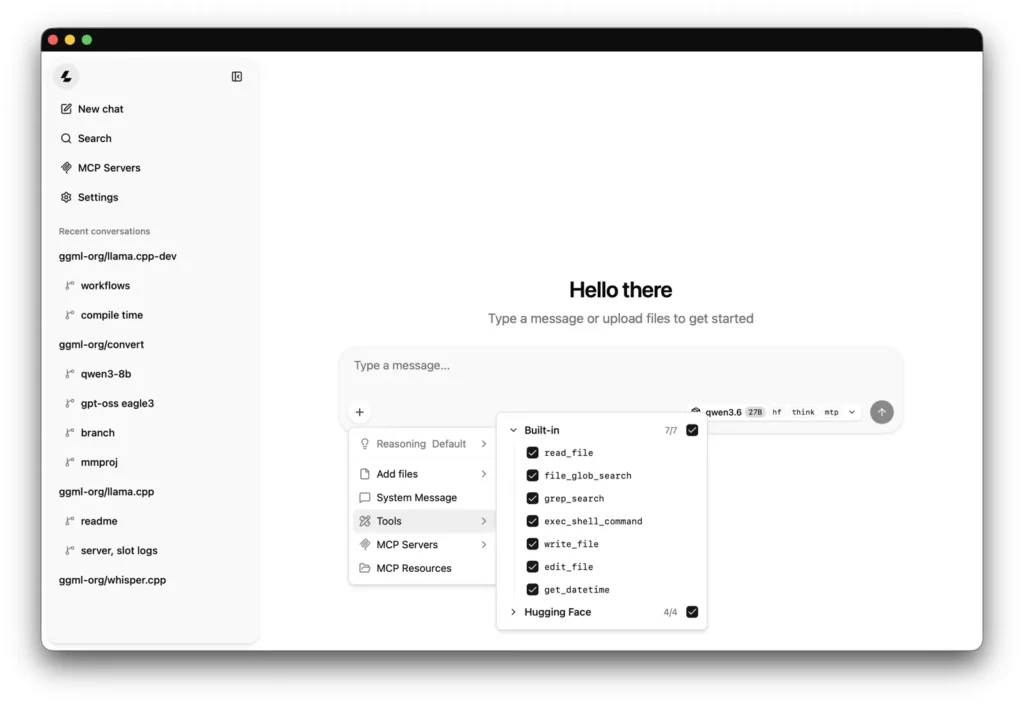
llama-server comes with a chat page of its own, on by default, at the same address as the API. Open http://127.0.0.1:9931 and there it is: your conversations and, since v0.7.0, a models manager. Your chats are kept in your browser’s storage, not in a folder on your disk: clearing the site’s data deletes them, and they do not follow you to another browser. --no-ui switches the page off if you only want the API.
Ollama’s window is its desktop app on macOS and Windows, which keeps your chats in a small database in your user folder. On Linux, Ollama is a background service and a terminal; you put a chat interface of your choice in front of its API. Funny detail: the llama-server running inside Ollama has the same chat page, and Ollama switches it off on purpose.
Which doors are open: 127.0.0.1:9931 against 127.0.0.1:11434
Good news first: both listen only on your own machine out of the box. llama.cpp v0.7.0 waits on 127.0.0.1:9931; up to v0.6.0 it was 8080, and the project’s Docker images still use 8080 inside the container. Ollama waits on 127.0.0.1:11434. Nobody on your wifi reaches either until you open it on purpose: --host 0.0.0.0 for llama.cpp, OLLAMA_HOST=0.0.0.0 for Ollama.
The difference is in what happens inside your browser. CORS decides which web pages may use a local server from your browser, and here Ollama is the stricter one. llama.cpp’s default reflects any origin back and allows credentials, so a web page you visit can send requests to your llama-server and read the answers while it runs; the server warns about it at startup with security: no API key is set and CORS allows all origins. Ollama accepts only pages served from localhost, 127.0.0.1 and 0.0.0.0 on any port, plus a few app schemes, and answers 403 to every other origin.
On keys, llama.cpp is the one that has them. --api-key, or the LLAMA_API_KEY variable, makes clients send a key, and --api-key-file reads several. Ollama’s local server has no key to check at all: its defences are listening only on your machine, its narrow CORS list and a check on the Host header of each request. One catch on llama.cpp’s side: the key does not change CORS. Our setup test showed the origin still reflected with a key set; the setting that closes it is --cors-origins localhost.
What each one sends out on its own
Here llama.cpp wins outright. We searched the code that makes up its engine, its server, its terminal chat and its chat page for analytics, telemetry and tracking, and found none, and v0.7.0 adds no new call. It has no update check and no account. It only goes online when you ask: model downloads, from Hugging Face with -hf or llama download and from any address with --model-url; models packaged as container images with --docker-repo; and llama update, which works only on installs made with the project’s script. Once your models are on disk, --offline forbids the network altogether.
Ollama has no analytics library anywhere in its code either. With only ollama serve, as on Linux, it makes 2 kinds of call to ollama.com by itself: a catalogue of recommended models every 4 hours and the cards of its cloud models when the server starts. OLLAMA_NO_CLOUD=1 switches both off. With the desktop app on macOS or Windows, 2 more kinds join them: an update check every hour, which no setting stops, and an account query when the app opens.

So the quietest setup is llama.cpp with --offline, then ollama serve without the app and with OLLAMA_NO_CLOUD=1. Every destination, with its source and date, is on our llama.cpp page and our Ollama page.
Which one we would install, by profile
- First time with local AI, on any computer: Ollama. One command, a model that loads and unloads by itself and a narrow CORS from the start.
- A Mac or a Windows laptop, and you want a window: Ollama’s desktop app. llama.cpp’s chat page is good, but it lives in the browser.
- You want long contexts without fiddling: llama.cpp, which starts from the model’s maximum; or Ollama with
OLLAMA_CONTEXT_LENGTHset by hand. - An editor plugin, scripts or 2 people on one model: llama.cpp, with its 4 slots,
--cors-origins localhostand a key. - Nothing may leave the machine: llama.cpp with
--offline. - A model released yesterday: a llama.cpp daily build, which gets new model families before the stable channel and before Ollama.
- A shelf of GGUF files in a folder: llama.cpp reads them as they are; Ollama needs a Modelfile per model.
If something fails along the way, we have a guide for when llama.cpp does not work and another for when Ollama does not work. Still weighing a desktop app or a server for a crowd? Our LM Studio vs Ollama and vLLM vs Ollama comparisons cover those, and the Model Finder tells you which models fit your machine.