When LM Studio fails, the message usually says where to look. This guide covers the failures reported most in its own bug tracker, plus the server and lms ones from its documentation: a model that will not load, the memory guardrail, a context that runs out, a model stuck on the CPU, an outdated engine, a server nobody can reach and a missing lms command.
There is a special kind of silence when a model you were excited about answers with an error instead of a sentence. It happens to everyone. The good news: LM Studio’s errors are more specific than they look, and each one below comes with the exact text you will see, why it happens and the fix, for the current stable version, 0.4.26 (published 8 October 2026 and still the latest stable release on 9 October 2026). This guide was written on 0.4.25; the 0.4.26 release notes list no change to any of these messages, and the lms ones read the same in its code on 9 October 2026. Installing it, starting the server and locking it down are covered in our LM Studio setup guide; this page picks up where that one ends.
 LM StudioRuntime sheet
“Failed to load the model”: read the real error first
This is the message reported most in LM Studio’s bug tracker, and it looks like this:
Failed to load the model
Error loading model.
(Exit code: 18446744072635812000). Unknown error. Try a different model and/or config.
The long number changes from one machine to another, so do not hunt for yours in a list. What matters is that this is a generic message with several possible causes behind it: not enough memory, a graphics driver, or an engine that is too old for the model. The sections below cover each one. Version 0.4.21 improved the llama.cpp model-load error messages, so on 0.4.26 the text you get is usually more specific than in older reports. If you are on an older version, updating is already step one.
Before you change any setting, look at what the server says. From a terminal, this streams LM Studio’s server logs:
lms log stream --source serverLeave it running in a second window while you try again. If lms is not found, jump to the last section first.
“Insufficient system resources”: the memory guardrail
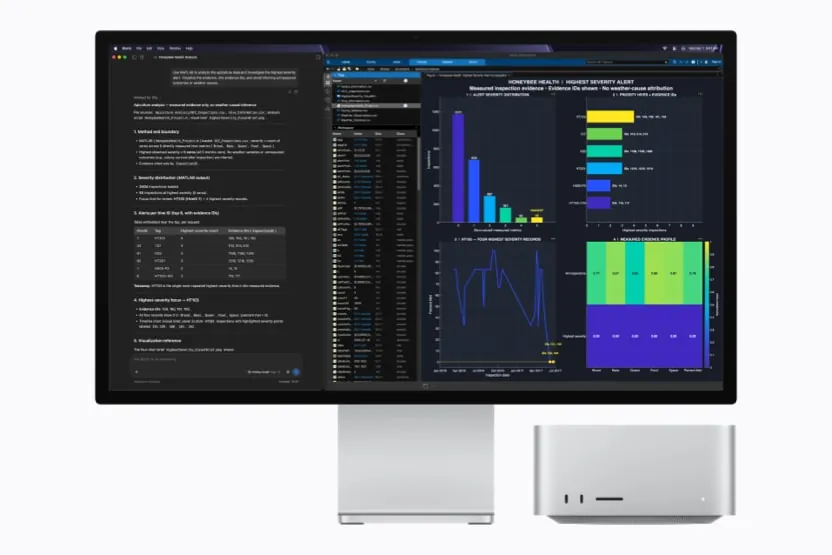
LM Studio estimates how much memory a model needs before loading it, and if the number is above its safety limit it stops, on purpose:
Error: Model loading was stopped due to insufficient system resources. Under the current settings, this model requires approximately 22.92 GB of memory, and continuing to load it would likely overload your system and cause it to freeze. If you think this is incorrect, you can adjust the model loading guardrails in settings.Annoying, yes, but it is the polite version of a frozen computer. The figure in the message (22.92 GB in this example) is the estimate for the model plus the context you asked for, “under the current settings”. So you have three ways out: ask for less context, pick a more compressed version or a smaller model, or adjust the model loading guardrails in Settings, as the message itself suggests. Only take the third if you are sure the machine can take it.
You can see the estimate without loading anything:
lms load --estimate-only <model_key>
lms load --estimate-only <model_key> --context-length 8192 --gpu max
It prints Estimated GPU Memory and Estimated Total Memory, and ends with one of 2 verdicts: This model may be loaded based on your resource guardrails settings. or This model will fail to load based on your resource guardrails settings. If it adds Confidence: LOW, take the number as a rough guide. The --context-length and --gpu flags are reflected in the estimate, so you can try sizes until the verdict turns green. The model finder gives you our own estimate before you even download the model.
“Context size has been exceeded”, and how much fits in 16 GB
A model that loaded fine can still stop mid-conversation with this:
Context size has been exceeded.The context (how much text the model keeps in view) is fixed when the model loads. When the conversation grows past it and the context overflow setting is set to stop at the limit, LM Studio stops; the other two options cut the middle of the conversation or drop the oldest messages instead. Its own documentation warns that going beyond the limit makes the model behave erratically. The fix is to load the model with more context:
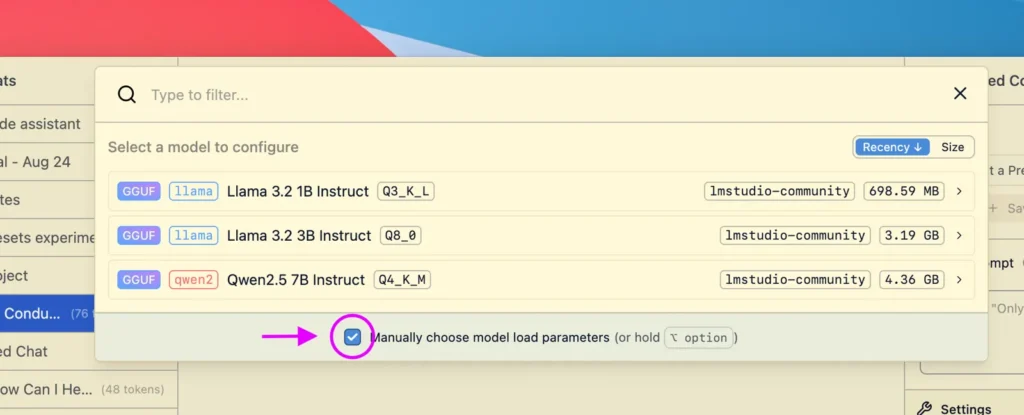
lms load <model_key> --context-length 16384In the app, you can change the load settings when you load a model and save them as that model’s defaults, or set those defaults in My Models with the gear icon. Two settings save memory here: Flash Attention, which reduces memory use, and quantizing the K and V cache (the V cache one requires Flash Attention to be on). One more reason to stay up to date: version 0.4.24 fixed the list of loaded models showing an incorrect context length.
But more context is not free: it is paid in memory when the model loads, and a big jump brings you straight back to the guardrail. How much is “more”? We ran the numbers with our own calculator for a Mac with 16 GB of unified memory, which leaves 13.0 GiB of it for the model, at Q4_K_M compression and with the cache at full precision (f16):
 Mac with M4 and 16 GB unified memoryHardware sheet
| Model | 4k | 32k | 64k | Largest context that fits |
|---|---|---|---|---|
| Qwen3 8B | 5.92 GiB | 10.38 GiB | 15.48 GiB ✗ | 49,152 tokens |
| Gemma 4 12B | 7.68 GiB | 8.65 GiB | 9.75 GiB | 161,792 tokens |
| gpt-oss-20b | 11.60 GiB | 12.78 GiB | 14.13 GiB ✗ | 37,888 tokens |
Total memory needed (model file + KV cache + runtime overhead), and the largest context that stays within the 13.0 GiB available, searched in steps of 1,024 tokens. Calculated by Local AI Scope on 6 October 2026 (the Gemma 4 12B row, on 15 October 2026): file sizes measured, KV cache calculated from each model’s architecture, overhead estimated. ✗ = does not fit. This is our estimate; lms load --estimate-only gives LM Studio’s own.
On a graphics card with 8 GB of VRAM (7.2 GiB left for the model), the room is much smaller: Qwen3 8B fits up to 12,288 tokens, and Gemma 4 12B and gpt-oss-20b do not fit even at 4k, so they end up split with the processor. Which leads us to the next problem.
Slow answers: the model is on the CPU, or the GPU is missing
If answers crawl out a word at a time while your fans spin up, the model is probably running, totally or partly, on the processor. Either it did not fit in the graphics memory, or the engine did not see the card at all.
First, ask for the whole model on the GPU when you load it:
lms load <model_key> --gpu max   # all layers on the GPU
lms load <model_key> --gpu 0.5   # half of them
lms load <model_key> --gpu off   # none, CPU only
To know beforehand whether it fits, run lms load --estimate-only <model_key> --gpu max: it prints the GPU memory that load would need. To set the GPU share for a model once and for all, use the gear icon in My Models. Then check what each engine sees:
lms runtime surveyIt surveys the hardware available to the selected engines. If your card is not on the list, try another engine: LM Studio ships separate llama.cpp engines for different kinds of graphics card (such as CUDA, Vulkan or ROCm, depending on your system), and you switch between them with lms runtime select or from the runtimes window (⌘ Shift R on a Mac, Ctrl Shift R on Windows and Linux). With an AMD card, a driver update could leave LM Studio showing 0 GPUs. Version 0.4.17 fixed AMD GPUs not being detected after driver updates, and a hardware survey with an old ROCm engine that left it stuck with no GPUs. If your AMD card still does not appear on 0.4.26, update the engines with lms runtime update and run the survey again, or select the Vulkan engine.
For reference, LM Studio recommends at least 4 GB of dedicated graphics memory and 16 GB of RAM on Windows, and 16 GB on a Mac; on an 8 GB Mac it asks you to stick to smaller models and modest context sizes.
Opens on YouTube (no cookies) only when you press play.
“No LM Runtime found”, or a brand-new model that will not load
LM Studio does not run models by itself: it hands them to an engine, llama.cpp for GGUF files on Mac, Windows and Linux, and MLX on Macs with Apple Silicon. The engines download and update separately from the app. That explains two common messages. The first means there is no engine for that file format:
No LM Runtime found for model format 'gguf'!The second shows up when a model is newer than your engine. A GGUF model just fails to load, and an MLX one can say something like:
Error when loading model: ValueError: Model type gemma4 not supported.The engine simply has not met that architecture yet. Engines carry their own version requirements: LM Studio 0.4.22, for example, notes that its new assistant drafters require llama.cpp engine version 2.29.1 or newer. The fix in both cases is to install or update the engine, from the runtimes window (⌘/Ctrl Shift R) or from the terminal:
lms runtime ls       # installed engines
lms runtime update   # update the installed ones
lms runtime get      # download one
lms runtime select   # choose the active one
Two requirements worth checking while you are there: MLX only exists on Macs with Apple Silicon, so an MLX model will not load on Windows or Linux; and on a Windows x64 PC, LM Studio requires a processor with the AVX2 instruction set.
Opens on YouTube (no cookies) only when you press play.
The server will not start on port 1234, or other devices cannot reach it
lms server start starts the server and then checks, 5 times, that it answers. If it never does, you get:
Failed to verify the server is running. Please try to use another port.The message itself points at the port: something else may be using it. The default is 1234, but if you do not pass --port, LM Studio reuses the last port you used, which is why “it worked yesterday” is not proof of anything here. Check the state and try another port:
lms server status
lms server start --port 1235
lms server status answers The server is running on port 1234. or The server is not running. On Linux, sudo ss -ltnp | grep 1234 shows which process holds the port.
Works on your machine, but not from the laptop next to it? That is by design: the server listens on 127.0.0.1, so only your own computer can talk to it. To open it to your network, switch on “Serve on Local Network” in the app, or:
lms server start --bind 0.0.0.0The command warns you, and it means it: Server will accept connections from the network. Only use this if you know what you are doing! LM Studio recommends turning on authentication whenever the server listens on anything other than 127.0.0.1; the setup guide shows how to create API tokens. If you point lms at another machine with --host and nothing answers, it tells you so: The server does not appear to be running at <host>:<port>.

“lms” not found, and the Linux AppImage that will not open
lms comes with the app, but there is a catch: you need to run LM Studio at least once before you can use it. If your terminal still does not know the command after that, add it to your path and open a new terminal window:
# macOS or Linux
~/.lmstudio/bin/lms bootstrap

# Windows, in PowerShell
cmd /c %USERPROFILE%/.lmstudio/bin/lms.exe bootstrap
If lms runs but says Failed to start or connect to local LM Studio API server., it could not wake LM Studio up: open the app, or start the background service with lms daemon up if you use LM Studio without its window.
On Linux, if the AppImage does not open at all, check your version before anything else. Version 0.4.22 fixed AppImage startup on systems without FUSE 2 and on systems where Chromium sandboxing is unavailable, fixed lms waking up AppImage installations, and switched on in-app updates for AppImage and .deb installations. LM Studio asks for Ubuntu 20.04 or newer, and says versions newer than 22 are not well tested.
Messages, commands and defaults from LM Studio’s documentation and changelog, the source code of its lms command line and the messages reported in its bug tracker, read on 6 October 2026 for version 0.4.25 and checked again against the 0.4.26 changelog and the lms code on 9 October 2026.
Running Ollama as well? Its errors are different, and so are the fixes: Ollama not working? 9 errors, the exact message and the fix. And for what LM Studio sends out while all this works, see its sheet: LM Studio: what it sends home and whether you can audit it.