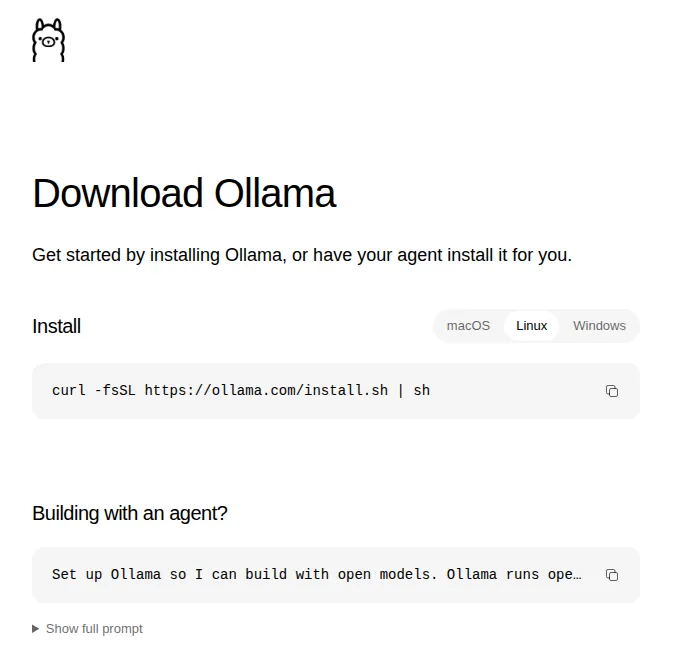
To update Ollama on Linux, run the install line again: curl -fsSL https://ollama.com/install.sh | sh. It fetches the latest stable release and restarts the service. On Mac and Windows the app downloads updates by itself; click «Restart to update» in its menu. In Docker, docker pull ollama/ollama and recreate the container with the same volume. Your models stay put.
Updating Ollama is one of those one-minute jobs that really is one minute… most of the time. To find out what hides in that «most», on 12 November 2026 we installed v0.40.15 in a throwaway Ubuntu 24.04 container running systemd (as close to a real server as a disposable test gets), pulled a tiny model, smollm2:135m, and moved it to that day’s stable release, v0.40.16, every sensible way: with the official script, by hand with tar, backwards, to a pre-release and in Docker. Everything this page says «we measured» comes from those runs, between 07:38 and 07:44 UTC. We did not run Mac or Windows: what we say about their updater we read in the v0.40.16 source code, and the text says so.
 OllamaRuntime sheet
Which Ollama version do you have: ollama -v
Start by checking where you are. ollama -v (or ollama --version, same thing) asks the running server for its version:
$ ollama -v
ollama version is 0.40.15
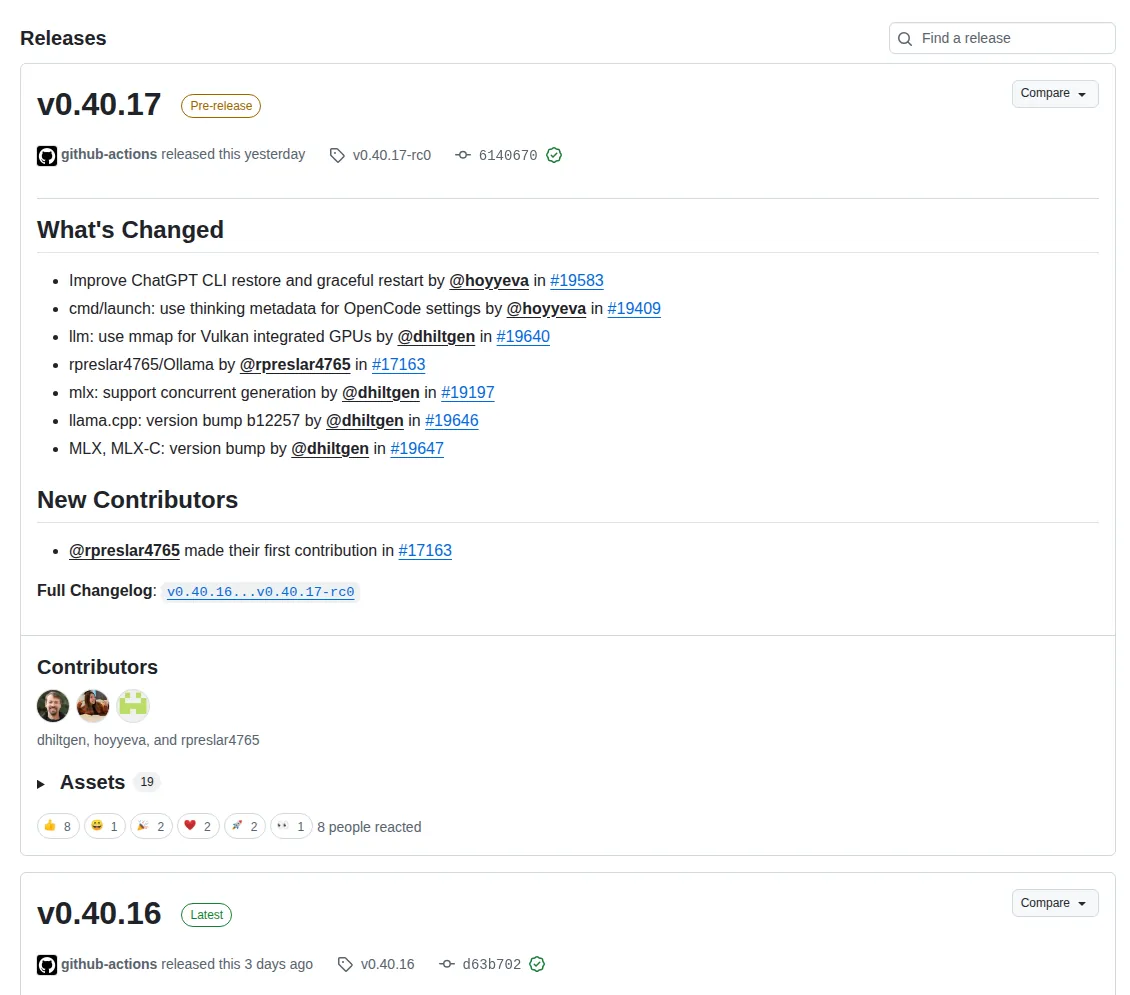
The API answers the same at http://127.0.0.1:11434/api/version with {"version":"0.40.15"}. The version you want to reach is on Ollama’s releases page on GitHub: the one tagged Latest is the stable one. As of 12 November 2026 the latest stable Ollama is v0.40.16 (released on 9 November); above it sits v0.40.17 with a Pre-release badge, a test build whose tag is v0.40.17-rc0. Run with no options, the install script gives you the stable one, never the test build.
«Error: unknown command “update” for “ollama”»
If you typed ollama update, you have met this already: there is no such command, and ollama upgrade does not exist either. Both answer Error: unknown command. Ollama is not updated from its own command line; it is updated with the same installer it came with, which is the rest of this guide.
How to update Ollama on Linux: run install.sh again
On Linux, updating means installing again with the very same line:
curl -fsSL https://ollama.com/install.sh | shOn 12 November 2026, going from v0.40.15 to v0.40.16 took us 26.5 seconds. The script first prints Cleaning up old version at /usr/local/lib/ollama and deletes those libraries, then downloads and unpacks the new package, and as it exits it restarts the service. We watched that last part in the journal: the old server kept running for the whole download and was restarted in the final second (its process ID changed), and the API reported the new version on the very first request. Nothing to restart by hand.
What changed on disk going from v0.40.15 to v0.40.16, comparing every file before and after: of the 49 files that make up the program (the binary plus /usr/local/lib/ollama), 23 had new content and 26 were byte-identical. No path appeared or vanished in Ollama’s folders. And the part you care about: the 7 data files in the model folder (/usr/share/ollama/.ollama/models/blobs) had the same sha256 fingerprint before and after, and ollama list still showed the model.
Two side effects worth knowing. The model you had in memory gets unloaded, because the server restarts: ollama ps came back empty right after, even though we had asked Ollama to keep it for an hour. And the script rewrites /etc/systemd/system/ollama.service from scratch.
Nobody tells you about a new version on Linux: the server does not check for updates (that notice belongs to the desktop app on Mac and Windows). To stay current, rerun the line now and then, or keep an eye on the releases page.
«Warning: client version is …»: two Ollamas on one machine
This warning shows up when the ollama command you type and the server that answers are different versions. We triggered it the usual way: with v0.40.15 installed by the script in /usr/local, we downloaded the v0.40.16 package and unpacked it by hand into /usr. The result was two Ollamas. ollama -v still said 0.40.15, because /usr/local/bin comes first in the PATH and the service starts that binary. The new one, called by its full path, printed the warning word for word:
$ /usr/bin/ollama -v
ollama version is 0.40.15
Warning: client version is 0.40.16
The first line is the server’s version; the second, the version of the command you just ran. To get out of it, count your copies with which -a ollama, keep one (if the service runs /usr/local/bin/ollama, update that one) and restart with sudo systemctl restart ollama. If could not connect to a running Ollama instance shows up next to the warning, the problem is not a version mix-up: no server is running at all.
Opens on YouTube (no cookies) only when you press play.
In this video the warning appears right after an update on Ubuntu, and goes away once the new binary is copied over the old one and the service is restarted.
Updating by hand with tar: you need zstd
If you installed Ollama by unpacking the package yourself, update the same way, into the same folder, with the service stopped. The package is zstd-compressed, and tar will not decompress it on its own from a pipe: curl … | sudo tar x -C /usr answered tar: Archive is compressed. Use --zstd option and wrote nothing. With zstd -d in the middle it worked (install the zstd package if you lack it):
sudo systemctl stop ollama
sudo rm -rf /usr/lib/ollama
curl -fsSL https://ollama.com/download/ollama-linux-amd64.tar.zst | zstd -d | sudo tar x -C /usr
sudo systemctl start ollama
ollama -v
Swap /usr for /usr/local if that is where your Ollama lives, which is where the script puts it (and use /usr/local/lib/ollama in the rm). The French video below walks the same route on a Fedora server with the .tgz package of the time: stop the service, unpack, start it again.
Opens on YouTube (no cookies) only when you press play.
Install a specific version or downgrade with OLLAMA_VERSION
The same script takes whatever version you name, forwards or backwards:
curl -fsSL https://ollama.com/install.sh | OLLAMA_VERSION=0.40.15 shWe tested both directions. Downgrading from v0.40.16 to v0.40.15 took 26.5 seconds and left the model in ollama list; OLLAMA_VERSION=0.40.17-rc0 installed the pre-release without complaint, and getting back to stable was just the line without the variable. Since Linux has no automatic updates, pinning a version is as simple as not running the script again.
How to update Ollama on Mac
With the Mac app there is almost nothing to do. According to the v0.40.16 source, the app asks ollama.com for a new version a few seconds after it opens and then every hour. When there is one, it downloads it in the background to ~/Library/Caches/ollama/updates and flags it in the menu bar icon: click «Restart to update» and the app is swapped for the new one. If the app starts in the background with no window and the update is already downloaded, it installs it by itself on startup (unless you switched automatic downloads off).
In the app’s settings, «Auto-download updates» is on by default. Switch it off and nothing gets downloaded («Updates will not be downloaded automatically»), but the hourly check carries on: the code always asks first and only then looks at whether it may download.
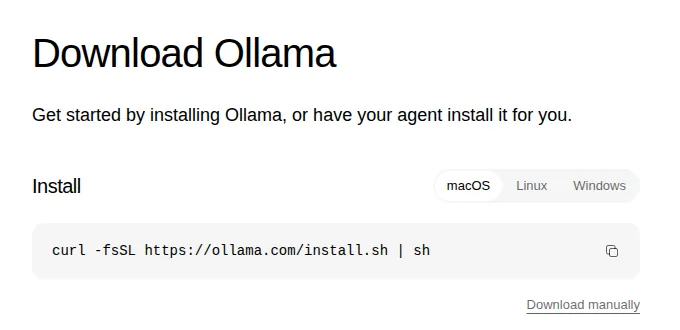
You can also force it from Terminal. The macOS download page gives the same line as Linux, and the script has a Mac section: it quits Ollama if it is open, deletes /Applications/Ollama.app, downloads the new version, puts it in Applications, recreates the /usr/local/bin/ollama link and opens it again. Your models in ~/.ollama are left alone.
How to update Ollama on Windows
Windows works like the Mac, because both apps share the same update mechanism. The app checks every hour, stores the download in %LOCALAPPDATA%\Ollama\updates_v2 and its taskbar icon tells you «Update available». When you click «Restart to update», it verifies the signature of the downloaded installer and runs it silently: it closes the app and installs with no questions and no way to cancel halfway. What happens during the install is logged in %LOCALAPPDATA%\Ollama\upgrade.log, in case something goes wrong.
If you installed with PowerShell, rerunning the line updates too, and it takes a version just like on Linux:
irm https://ollama.com/install.ps1 | iex
$env:OLLAMA_VERSION="0.40.15"; irm https://ollama.com/install.ps1 | iex
The video below goes through Mac, Windows, Linux and Docker one after another, pre-releases included: a handy 8-minute tour.
Opens on YouTube (no cookies) only when you press play.
How to update Ollama in Docker without losing your models
In Docker the program lives in the image and your models in the volume, so updating means swapping the image and keeping the volume. What does not work, and we checked, is restarting: after pulling the new image, docker restart left the container on v0.40.15, because a container keeps the image it was created from. You have to create it again:
docker pull ollama/ollama
docker stop ollama
docker rm ollama
docker run -d --name ollama -v ollama:/root/.ollama -p 127.0.0.1:11434:11434 ollama/ollama
docker exec ollama ollama -v
With the same volume, the new container said ollama version is 0.40.16 and ollama list still showed the model we had pulled with the old version. The pull took 70 seconds on our connection, and on 12 November 2026 the v0.40.16 image took 8.52 GB on disk (a lot more than the 3.16 GB compressed size Docker Hub shows). To go back, same thing with the tag, ollama/ollama:0.40.15, and the model was there too.
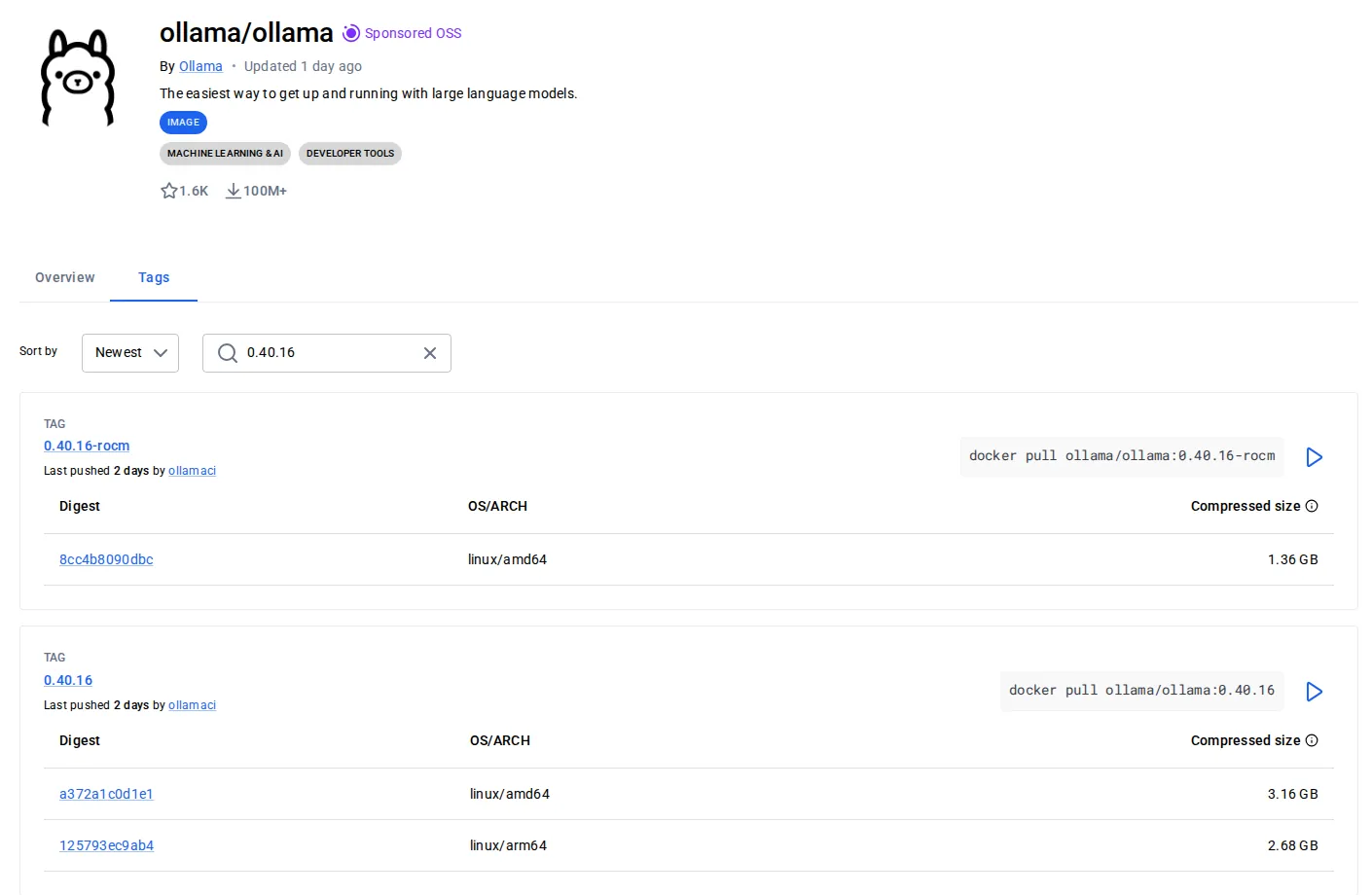
-rocm one for AMD cards). Writing it out, as in ollama/ollama:0.40.16, lets you decide when to move Screenshot: Docker Hub, ollama/ollama, 12-11-2026With Docker Compose, the equivalent is docker compose pull followed by docker compose up -d, which recreates the container with the new image. Volume, port and GPU are covered in our guide to Ollama in Docker.
Check that the update worked
Three questions, in this order. ollama -v should show the new version and no Warning. ollama list should show your usual models. And an ollama run with a small one should answer: that is the test that would have caught our mistyped version, because ollama -v did not. Our smollm2:135m, which earlier turned a request for a 3-word greeting into a 21-word sentence, replied «Hello! What can I help you with today?» on the new version. Better manners, same counting skills.
If something will not start, our list of Ollama errors with the exact message is the next stop. If you would rather start from scratch, here is how to uninstall Ollama completely, and our Ollama setup guide.