To run Ollama in Docker: docker run -d -v ollama:/root/.ollama -p 127.0.0.1:11434:11434 --name ollama ollama/ollama, then docker exec -it ollama ollama run llama3.2. The volume keeps your models when the container goes; the 127.0.0.1 keeps the port on your computer. We tested it on v0.40.15: 3.4 GB to download, 8.5 GB on disk.
Docker is a lovely way to run Ollama: one command, nothing installed on the system, and an update is just a new image. But the official image is not simply “Ollama in a box”: it changes the address Ollama listens on, and that switches off one of its 2 protections. So on 6 November 2026 we pulled ollama/ollama:0.40.15 onto a Linux server (Docker 29.9.3, ufw switched on, no NVIDIA card, an AMD integrated GPU), loaded a tiny 135-million-parameter model (smollm2:135m) and measured what each option does: ports, volumes, variables, GPU and Compose. Everything below that says “we measured” comes from those runs, between 15:52 and 16:01 UTC, and from one more on 7 November at 08:21 UTC with the command of the first section; what comes from documentation says so.
 OllamaRuntime sheet
Ollama in Docker in 1 command (and the 2 details that matter)
This is the command we recommend. We ran it on 7 November at 08:21 UTC, with our tiny model in place of llama3.2 and a one-off question (“Name one planet.”) instead of the chat:
docker run -d -v ollama:/root/.ollama -p 127.0.0.1:11434:11434 --name ollama ollama/ollama
docker exec -it ollama ollama run llama3.2
curl http://127.0.0.1:11434/api/version
The first line starts the server in the background, the second downloads a model and opens a chat with it inside the container (ours fetched its 270 MB and replied without naming a single planet, which is about what 135 million parameters give you), and the third checks that the API answers from your computer (ours replied {"version":"0.40.15"}, and docker port showed only 127.0.0.1:11434). The 127.0.0.1: in front of the port is the first detail that matters, and the next sections show why. The second is the -v: without it, your models live and die with the container.
What the image brings, read in its configuration and its Dockerfile: Ubuntu 24.04, the ollama binary (44.2 MB) and 4.64 GB of GPU libraries in /usr/lib/ollama, which is why it weighs so much. It runs as root (no USER line; id inside said uid=0(root)), it sets OLLAMA_HOST=0.0.0.0:11434 so the server listens on every interface of the container, and it declares no volume. Downloading it meant 3.39 GB, a minute and a bit on our server’s fibre; on disk it took 8.51 GB. Your disk will notice it more than your electricity bill.
| Tag (on 7-11-2026) | What it carries | Platforms | Download |
|---|---|---|---|
latest = 0.40.15 |
Processor and NVIDIA (CUDA 12 and 13); Vulkan on amd64, Jetson (JetPack) on arm64 | amd64 and arm64 | 3.39 GB (amd64) · 2.87 GB (arm64) |
rocm = 0.40.15-rocm |
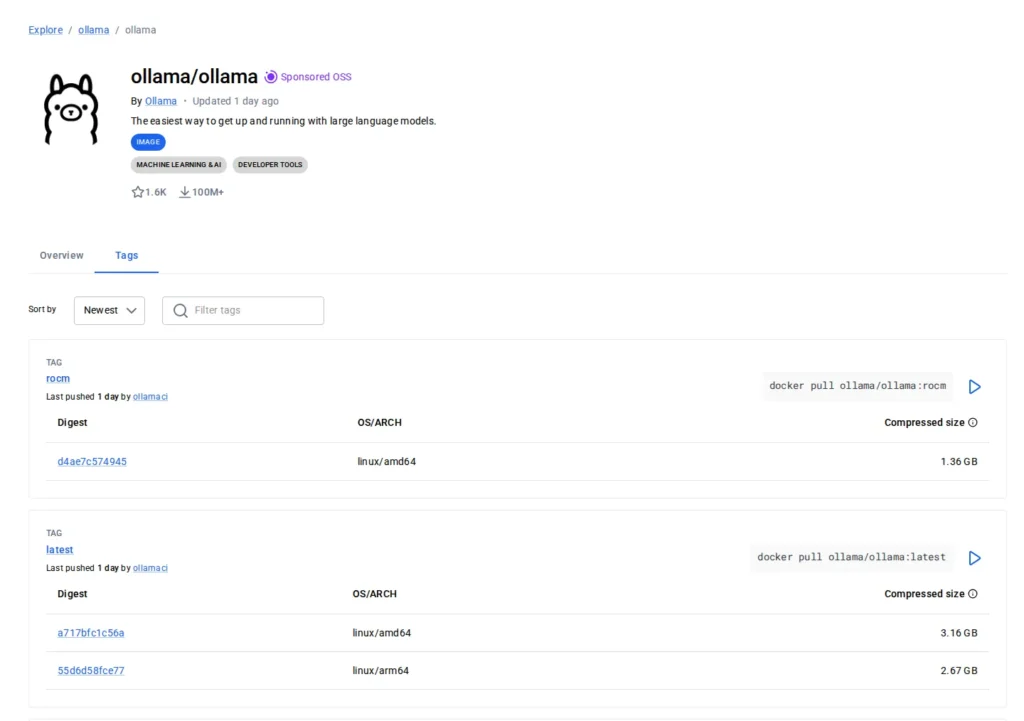
Processor and AMD ROCm 7.2.1 | amd64 only | 1.46 GB |
On 7 November 2026 latest was the same image as 0.40.15 (same digest on Docker Hub); since 9 November 2026 it points to 0.40.16 (and rocm to 0.40.16-rocm). Writing the version, as in ollama/ollama:0.40.15, means you decide when to update instead of finding out after a docker pull.
In this video the port is published as -p 11434:11434, without 127.0.0.1: that version opens Ollama to your whole network. If you only use it on your own computer, add 127.0.0.1 as we explain below, in the port section.
Opens on YouTube (no cookies) only when you press play.
Keep your models: a named volume or a folder
Without -v, a model you download goes into the container’s own writable layer. We tested it: model copied into the container, ollama list showed it, docker rm -f and the same docker run again, and ollama list came back empty. With a named volume (-v ollama:/root/.ollama), the same removal and re-creation kept the model in place. On Linux, Docker kept our test volume in /var/lib/docker/volumes/<name>/_data (yours: …/ollama/_data), owned by root.
The other option is a folder of yours: -v /home/you/ollama:/root/.ollama. It works, with one catch we saw: the files it creates appear on your computer as owned by root (uid 0), even though the folder was ours, so deleting them later needs sudo. If you want the models somewhere else inside the container, -e OLLAMA_MODELS=/datos/models moves them, as long as the volume is mounted there too (-v ollama:/datos): that is how we tested it, and ollama list found the model in that path.
The volume also keeps a small file you would not think of. At its first start the server creates /root/.ollama/id_ed25519, the key that Ollama uses to identify itself to ollama.com. Without a volume, every new container starts with a new key.
To update, the volume does all the work: docker pull ollama/ollama:<new version>, docker rm -f ollama and the same docker run with the new tag. The models stay where they were. To remove everything: docker rm -f ollama, docker volume rm ollama and docker rmi ollama/ollama (or the tag you used), which frees that space. To remove an Ollama installed outside Docker, on Mac, Windows or Linux, see how to uninstall Ollama.
The port: 127.0.0.1 or your whole network (and ufw won’t stop it)
This is the section we would underline twice. With -p 127.0.0.1:11434:11434, we measured that Docker opens the port only on the local address: ss -ltn showed a single 127.0.0.1 line, curl 127.0.0.1 got the version, and a request to the server’s own network address was refused (that last check on a high port, 18434).
The short form, -p 11434:11434, is a different story. We tested it with a tiny stand-in web server instead of Ollama, for 2 seconds, so as not to leave a model open: docker port listed 0.0.0.0 and [::], which means every IPv4 and IPv6 address of the machine, and a request to its network address got a 200. With ufw active and no rule for that port. Docker sends that traffic through rules of its own (a redirect in the nat table and its chains placed before ufw’s in FORWARD), and Docker’s own documentation says it plainly: published ports skip the ufw settings. Our request came from the server itself, to its network address; that another computer gets in the same way is what Docker documents, and the rules we read say the same.
One detail from Docker’s documentation: before Docker 28.0.0, computers on the same local network segment could reach ports published on 127.0.0.1. Check yours with docker version; with 28 or later, 127.0.0.1 is what it says. And if you do want to use Ollama from another computer, an SSH tunnel (ssh -L 11434:127.0.0.1:11434 you@server) gives you the API there without opening anything to the network.
What changes inside the container: the Host check and CORS
With its default address (127.0.0.1), Ollama has 2 barriers against web pages that try to reach your local server. The first checks the Host header and turns away names it does not know, which stops the trick of a domain that points to 127.0.0.1 (DNS rebinding). The second is CORS, the list of origins a browser may let in. In our guide to the Ollama API we tested the first one with the plain binary listening on 127.0.0.1: a 403.
Inside the official image, the first one switches off. With the image as it comes and the port on 127.0.0.1, our request with a made-up Host (atacante.example) got a 200. Same image with -e OLLAMA_HOST=127.0.0.1:11434, in a container without network and asked from inside it: 403. That variable is no use with -p (the server would then only listen inside the container). The reason is in the code (server/routes.go): when the server listens on an address that is not loopback, it does not check the Host, and the image sets 0.0.0.0. CORS does still work: an unrelated origin (https://ejemplo.com) got a 403 and http://localhost:3000 a 200.

It is not an alarm: one barrier out of 2 is off, and the other stays. If you want both on Linux, there is a way that we tested: --network host -e OLLAMA_HOST=127.0.0.1:11435 (we used 11435 so as not to clash with anything; with no other Ollama on the machine, 11434 is fine). The container then uses the computer’s network, ss showed only 127.0.0.1:11435, and the made-up Host got its 403 again. Without -p: with --network host there is nothing to publish. And never --network host without that variable: the image’s own OLLAMA_HOST=0.0.0.0 would then listen on every address of your computer.
Docker Compose: a minimal file that we tested
The same thing, in a file you can keep. We started this compose.yaml with docker compose up -d (Compose v5.7.0):
services:
  ollama:
    image: ollama/ollama:0.40.15
    ports:
      - "127.0.0.1:11434:11434"   # this computer only; without the IP it opens on every address
    volumes:
      - ollama:/root/.ollama      # models survive down/up and version changes
    environment:
      - OLLAMA_NO_CLOUD=1         # no cloud models or cloud routes
    restart: unless-stopped

volumes:
  ollama:
What we saw: the port only on 127.0.0.1:11434, the API answering with the version, the restart policy set to unless-stopped (according to Docker, it comes back after a crash or a Docker restart, unless you stopped it yourself), and the volume mounted on /root/.ollama. docker compose down followed by up -d kept the model, and it answered again. docker compose down -v deletes the volume as well, models included: keep the -v for when you mean it. To chat with a model: docker compose exec ollama ollama run llama3.2. And OLLAMA_NO_CLOUD=1 does not stop you downloading models: that same 6 November morning, in an earlier test with the plain binary, we downloaded one from ollama.com with the variable on.
GPU in Docker: NVIDIA, AMD (ROCm), Vulkan and integrated graphics
The image is ready for the graphics card, but Docker does not hand it over unless you ask. What follows on NVIDIA and ROCm we read in Ollama’s documentation for v0.40.15; the integrated GPU part we tested.
 Workstation with an RTX 4090 24 GBHardware sheet
NVIDIA. First the NVIDIA Container Toolkit on the host (from NVIDIA’s apt or yum repository), then sudo nvidia-ctk runtime configure --runtime=docker and sudo systemctl restart docker, and finally the same docker run with --gpus=all. On Windows it goes through WSL2 with the same toolkit. In Compose, Docker’s documentation (read on 7 November) asks for a deploy block under the service; capabilities is compulsory and count takes a number or all. We have not run it, for lack of an NVIDIA card:
    deploy:
      resources:
        reservations:
          devices:
            - driver: nvidia
              count: all
              capabilities: [gpu]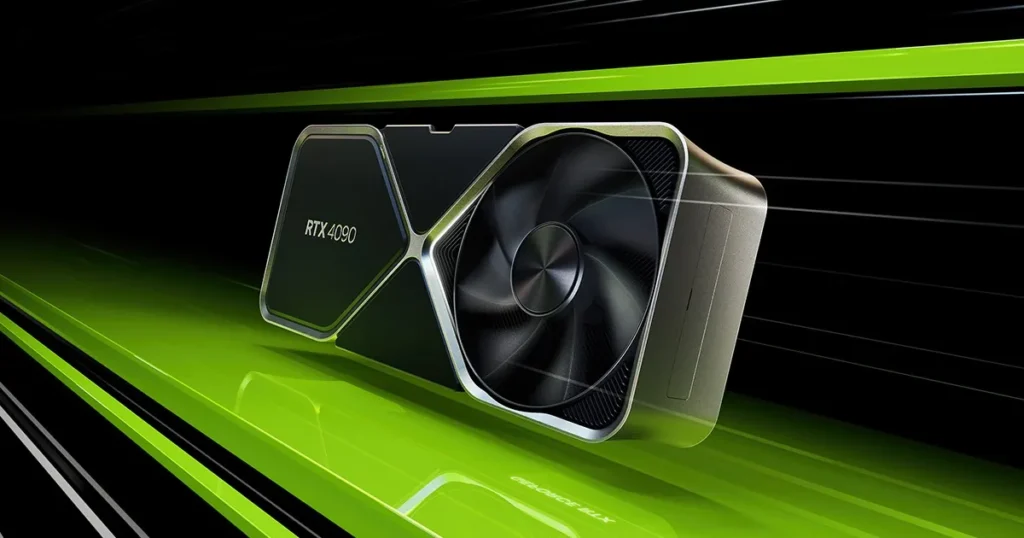
AMD with ROCm. The other image: docker run -d --device /dev/kfd --device /dev/dri -v ollama:/root/.ollama -p 127.0.0.1:11434:11434 --name ollama ollama/ollama:rocm. It only exists for amd64 and is meant for AMD cards that work with ROCm.
Vulkan and integrated graphics (tested). The normal image for amd64 also carries Vulkan, on by default when it sees the devices. On our server, with --device /dev/kfd --device /dev/dri, Ollama found the integrated AMD graphics (“AMD Radeon Graphics (RADV RENOIR)”) and then dropped it: dropping integrated GPU; to enable, set OLLAMA_IGPU_ENABLE=1. We added -e OLLAMA_IGPU_ENABLE=1, and the log showed library=Vulkan, type=iGPU, with all 31 of the model’s layers on the GPU. With a 135M model it was not faster than the processor, so read that as “it switches on like this”, not as speed.
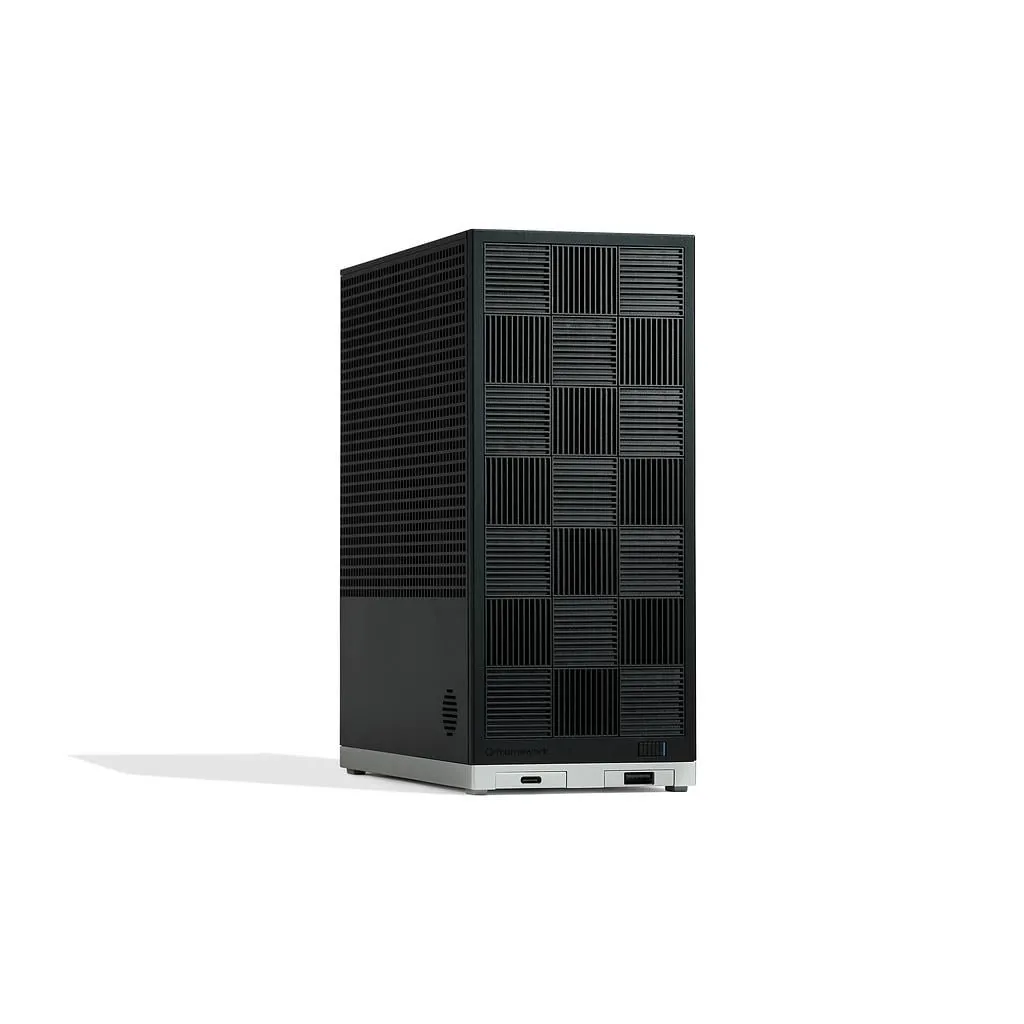
 PC with Ryzen AI Max+ 395 and 128 GB unifiedHardware sheet
On a Mac, better without Docker. Ollama’s FAQ says it straight: Docker Desktop on macOS does not pass the GPU through, so the container works on the processor only. The Ollama app for Mac does use the chip’s GPU, through Metal.
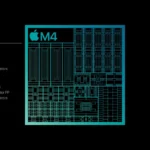 Mac with M4 and 16 GB unified memoryHardware sheet
If the GPU works for a while and then the model falls back to the processor, that is a known Docker trap (the cgroup driver), and we explain it, with the nvidia-smi test inside a container, in Ollama not working.
Opens on YouTube (no cookies) only when you press play.
This short video shows the 4 checks outside Docker: ollama ps, the server log, the output of ollama serve and the system’s performance monitor. In a container they are the same with docker exec ollama in front, and the log is docker logs ollama.
Offline and without the cloud: OLLAMA_NO_CLOUD, keep_alive and what it tries to reach
Variables go in with -e, and we checked that the image honours them. With -e OLLAMA_NO_CLOUD=1 -e OLLAMA_KEEP_ALIVE=30s -e OLLAMA_MODELS=/datos/models, the server’s own log listed the 3, and printed Ollama cloud disabled: true. /api/balance, a route that asks ollama.com about your account, answered 403 without trying to leave. And the model, after answering, stayed in memory for exactly 30 seconds (the expires_at of /api/ps), instead of the 5 minutes that come by default.
What does it try to reach if you do not set anything? We started the image without that variable and without a network: within the first millisecond it tried 2 calls to ollama.com, the catalogue of recommended models and the list of cloud models, and both failed with “network is unreachable”. With OLLAMA_NO_CLOUD=1, none. If you want a container that is 100% offline, --network none does it, as long as the models are already in the volume; the catch is that it publishes no port either, so the way in is docker exec.
If you would rather install Ollama straight on the system, our guide to running Ollama locally starts from scratch, with the SSH tunnel step by step. The routes of the API you just published, CORS and keep_alive are in the Ollama API, and if the answers come out cut short, context length in Ollama explains how to raise it. And if you want a ChatGPT-style chat window on top of this container, Open WebUI with Ollama runs in a second container on the same Docker network; we recorded what it connects to and how to bring that down to zero.